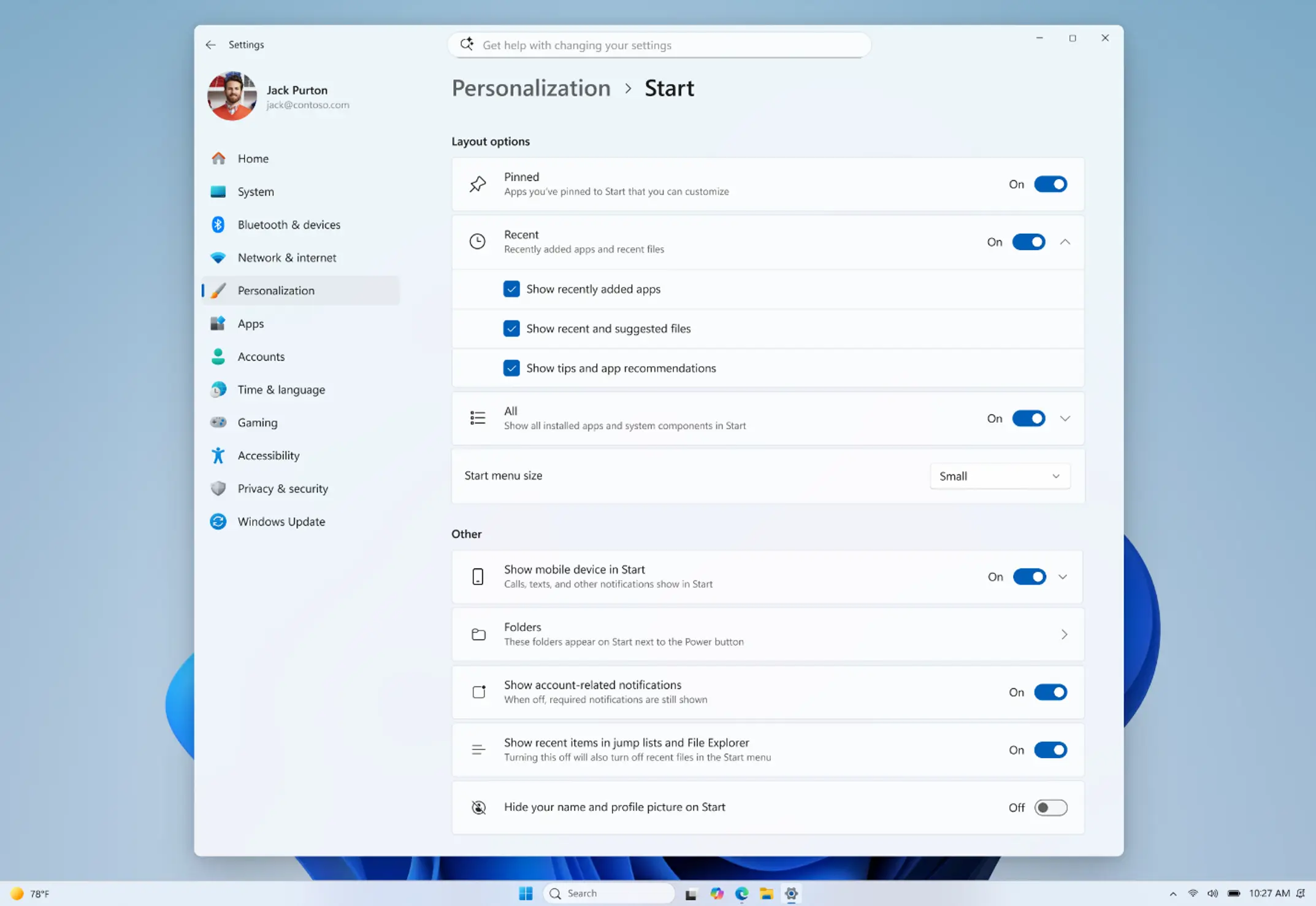
Microsoft is finally taking a step back from its rigid design philosophy to address one of the most persistent complaints since the operating system’s debut. In the latest preview builds rolling out to the Windows Insider Program, Windows 11 gets a big Start menu update that shifts the entire core interface toward a modular, user-driven framework.
When Windows 11 originally launched, it pushed a simplified, heavily curated look that stripped away classic desktop customizability. Fast forward to the latest development builds, and Microsoft is using a modern WinUI 3 software architecture rebuild to fix those exact limitations. The update introduces a flexible layout engine that yields control of screen real estate back to the user’s workflow requirements.
The Core Upgrades: Modularity and Flex Sizin
1. True Modular Toggle
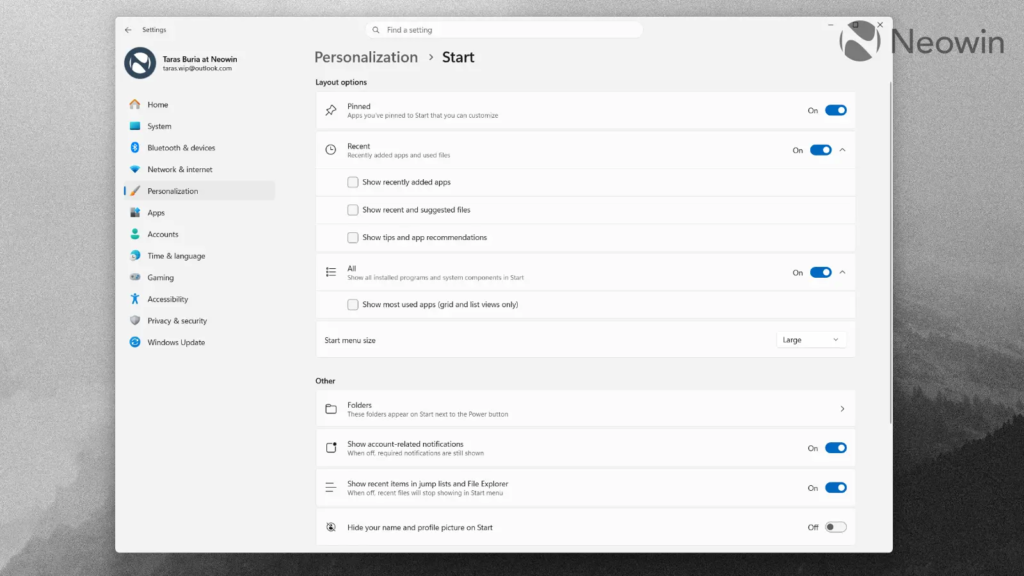
Users are no longer forced to look at cluttered system files or empty space if they choose to turn off tracking history. The update introduces independent settings switches to cleanly add or remove entire sections of the menu launcher:
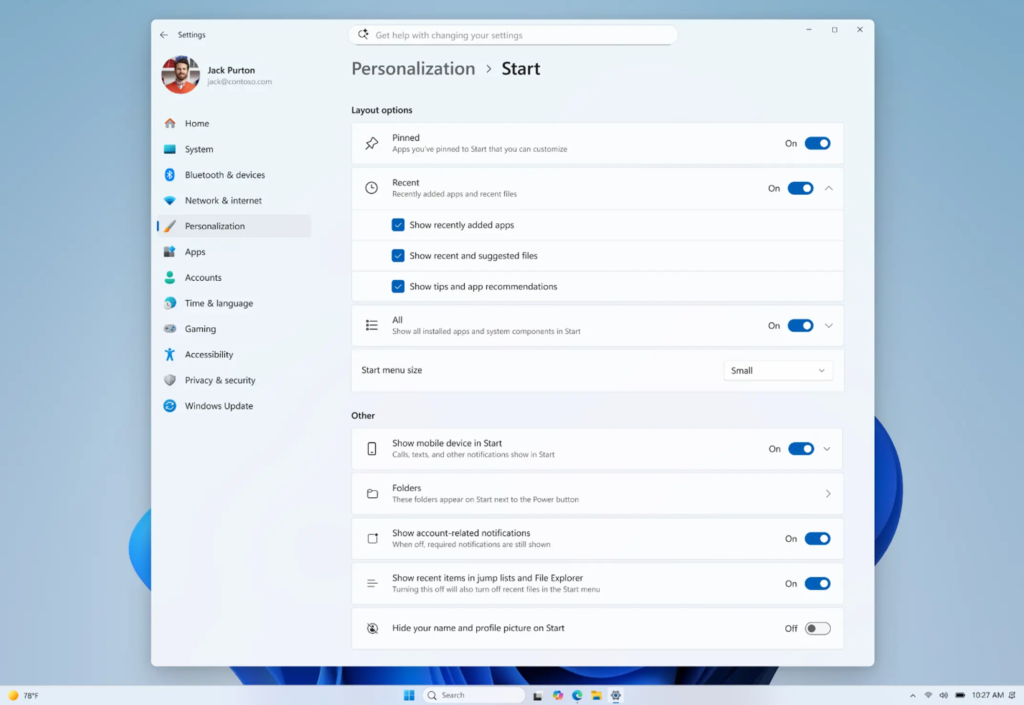
- The Pinned Grid: Can be isolated as a clean, standalone app launcher pad.
- The Recent Section: (Formerly Recommended) Can be turned completely off, automatically reclaiming that empty space to fit more application icons.
- The All Apps View: Can be forced to show up immediately without hiding behind an extra click.
2. Resizable Sizing Templates
While the update stops short of the infinite edge-dragging window box parameters found back in Windows 10, it breaks down the single-size layout constraint. Users can drop into the Personalization panel to select between standardized small and large display templates, ensuring the menu looks sharp whether viewed on a compact 13-inch laptop or scaled out across a 32-inch 4K desktop monitor.
Feature Comparison Matrix: Legacy Start Menu vs. 2026 Redesign
To clearly map out how much functionality Microsoft is restoring in this latest testing cycle, it helps to examine the interface layout elements side-by-side.
The analytical table below contrasts the original layout parameters against the newly deployed WinUI 3 modular update:
| Interface Dimension | Original 2021 Windows 11 Layout | Newly Deployed 2026 Insider Redesign | Target Power-User Workspace Benefit |
|---|---|---|---|
| Menu Resizing | Static dimensions determined entirely by monitor DPI scaling | Dual layout dropdown profiles (Small or Large sizing models) | Optimizes screen space for minimalist setups or dense icon boards |
| Recommended Content | Permanent structural block; clearing files left vast empty spaces | Full modular visibility toggles for Pinned, Recent, and All Apps | Complete removal of unwanted clutter and potential file privacy leaks |
| System Code Base | Legacy hybrid UI framework prone to heavy system load slowdowns | Re-engineered on native WinUI 3 processing architectures | Snappy, responsive interface performance even under 100% resource load |
| Account Data View | Legal profile name and avatar permanently pinned to the lower tray | Toggleable account name visibility on the main launcher panel | Enhanced security during live video streams or screen shares |
| Taskbar Synergy | Rigidly locked to the bottom edge of the primary display surface | Fully movable orientation settings (Top, Left, or Right screen placement) | Ultimate desktop flexibility for multi-display workflows and ultrawide panels |
How to Enable the Modular Redesign via ViveTool
Because Microsoft uses a gradual, server-side rollout scheme for feature drops inside the Windows Insider Program, even users running the latest Dev or Beta channel builds might not see the new options immediately.
If you want to bypass the waitlist, follow this sequence to manually force-enable the layout mechanics on your testing machine:
1.Download and Extract the Configuration Tool:File Acquisition.
Open your web browser and navigate to the official GitHub repository for ViveTool. Download the latest release compressed folder and extract its contents into an easy-to-find directory, such as one on your desktop.
2. Initialize an Elevated Command Prompt: System Elevation.
Press the Windows key, type cmd into the search bar, right-click on the Command Prompt application icon, and select Run as Administrator to open an elevated window.
3.Navigate to Your Extracted Utility Path:Directory Shift.
Type the change directory command into the terminal window to point to your extraction folder and press Enter: cd C:\ViveTool
4.Execute the Staged Feature ID Scripts:Feature Activation.
Copy the direct staging enable script string, paste it into the command line, and hit Enter to override the server-side locks: vivetool /enable /id:47205210,49221331,49381526,49402389
5. Perform a Full OS Environment Reboot: System Reset.
Close out the command window interface, save any open files or project workflows, and reboot your PC to let the desktop shell build the updated user options profile.
Better Privacy: Hidden Profile Trays
A secondary, highly praised addition packed into this layout refresh is an optional privacy toggle targeting digital creators and remote enterprise professionals.
Streamer Friendly: Under the updated personalization options, users can select to completely hide their legal profile name and avatar image from the bottom navigation bar of the Start menu panel. This simple tweak is a major security bonus for professionals who frequently share screens during corporate virtual meetings or stream live desktop tutorials to public audiences online, ensuring personal account identification details stay safe from accidental exposure.
Mainstream users can expect these customization updates to roll out globally in a major Windows 11 feature package later this year, provided the current Insider testing phase concludes smoothly.