Android users who love keeping their music library meticulously organized are finally getting a long-awaited tool. In a major quality-of-life update, the Spotify app for Android adding playlist folders as part of a sweeping rollout aimed at bringing mobile layout parity closer to its desktop counterpart.
For years, creating structural folders to group similar music vibes or saved albums remained strictly locked to the desktop client. This latest deployment breaks down those platform walls, giving premium subscribers total control over their music libraries directly from their smartphone touchscreens. alongside playlist folders, the streaming giant is rolling out smart queue additions to remove everyday playback frustrations.
The 2026 Mobile Feature Drop: What’s New on Android?
The mid-year software drop introduces several separate library tools. To help clear up confusion about which options are accessible under different account tiers, it helps to analyze the structural changes.
The comprehensive table below outlines the specific characteristics of Spotify’s newly added mobile features:
| Feature Addition Name | Primary User Interface Action | Target Problem Solved | Available to Free Users? |
|---|---|---|---|
| Mobile Playlist Folders | Tap the “+” menu icon in Your Library | Cluttered, endless scrolling through loose playlists | ✗ Premium Exclusive |
| One-Tap “Reshuffle” | Tap the dedicated button inside the active Queue | Repetitive shuffle patterns or double-tapping errors | ✗ Premium Exclusive |
| Multi-Track Selection | Long-press and drag or check box arrays | Slow, tedious track-by-track deletion from a playlist | ✓ Available to All Tiers |
| Background Downloads | System level automated background syncing | Playback interruptions during offline transitions (iOS parity) | ✗ Premium Exclusive |
Breaking Down the Core Additions: Folders and Reshuffling
The latest update targets specific everyday design flaws that have long irritated power users who manage massive music libraries.
1. Seamless Library Organization
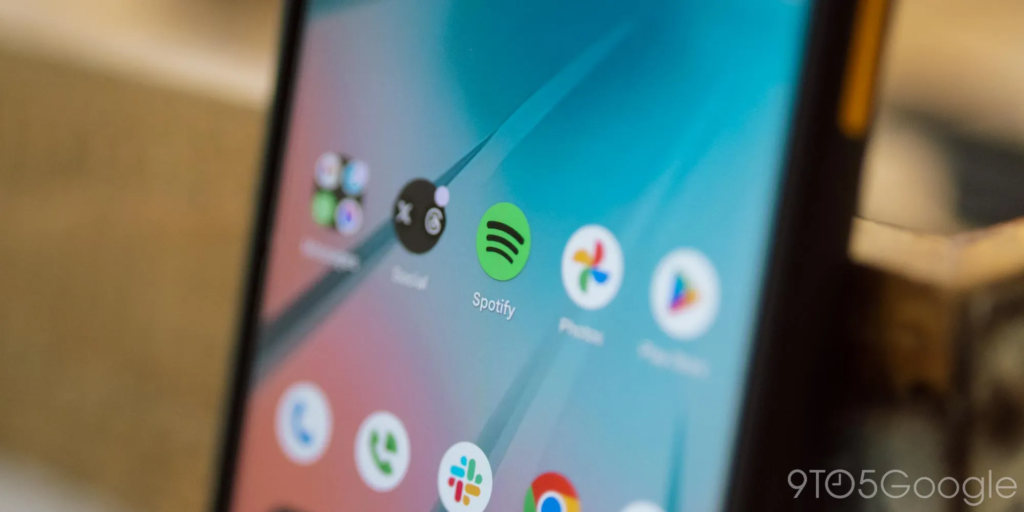
Before this rollout, if you wanted to keep your workout tracks separate from your deep-focus ambient music, your only choice on mobile was to scroll through a massive vertical list of individual playlists. Now, users can tap the classic “+” icon in the top-right corner of the library interface to create a brand-new folder. From there, you can easily group existing mixes, customized mood playlists, and saved studio albums into neat subcategories.
2. The Power of the One-Tap Reshuffle
If you rely heavily on the random shuffle tool, you are likely familiar with how repetitive standard automated algorithms can get over long listening sessions. Spotify is fixing this with the new Reshuffle option.
Instead of forcing users to double-tap the classic shuffle icon to try and reset the music track list, the queue player interface now includes a dedicated, single-tap button. This instantly mixes up the remaining track order, providing a truly fresh listening experience with a single press.
Step-by-Step Guide: Managing Your Queue with Multi-Track Editing
The single feature included in this update that is open to both Free and Premium users is the advanced multi-track selection tool.
Follow this quick procedural guide to cleanly purge unwanted tracks from your active playback queue all at once:
1.Open the Active Queue Monitor:Queue Initialization.
Launch the app player and tap on the Now Playing bar at the bottom of your screen. Select the Queue icon positioned in the lower-right corner of the interface.
2.Trigger the Multi-Select Mode:Gesture Control.
Perform a firm long-press on any individual track name within your upcoming song list. The UI layout will instantly shift, displaying check box zones along the left edge.

3.Highlight Unwanted Media Items:Batch Processing.
Tap your finger down across the screen to check off multiple songs you want to skip or delete. You can also drag your finger down the screen to quickly select large blocks of tracks.
4.Confirm Batch Removal Action:Execution Phase.
Tap the prominent Remove or garbage bin action item positioned on the lower navigation overlay. The app will instantly delete all selected items from the queue simultaneously.
Cross-Platform Disparities: Android vs. iOS
Interestingly, the press breakdown highlights a massive structural difference in how Android and iOS handle file systems behind the scenes. The feature rollout lists “Background Downloads” as a headline feature for iPhone users, enabling media files to download even when the screen is locked or another application is active.
The Platform Divide: Android users have quietly enjoyed seamless system-level background downloads for years. Because the Android OS allows robust background processing out of the box, mobile downloads have always run smoothly in the background without needing the main application to stay open on the screen.
The complete suite of updates is rolling out to global regional markets through the Google Play Store starting today. If you don’t see the new folder options or the reshuffle button on your dashboard just yet, keep an eye out for a secondary server-side update over the next few days.